Instruments
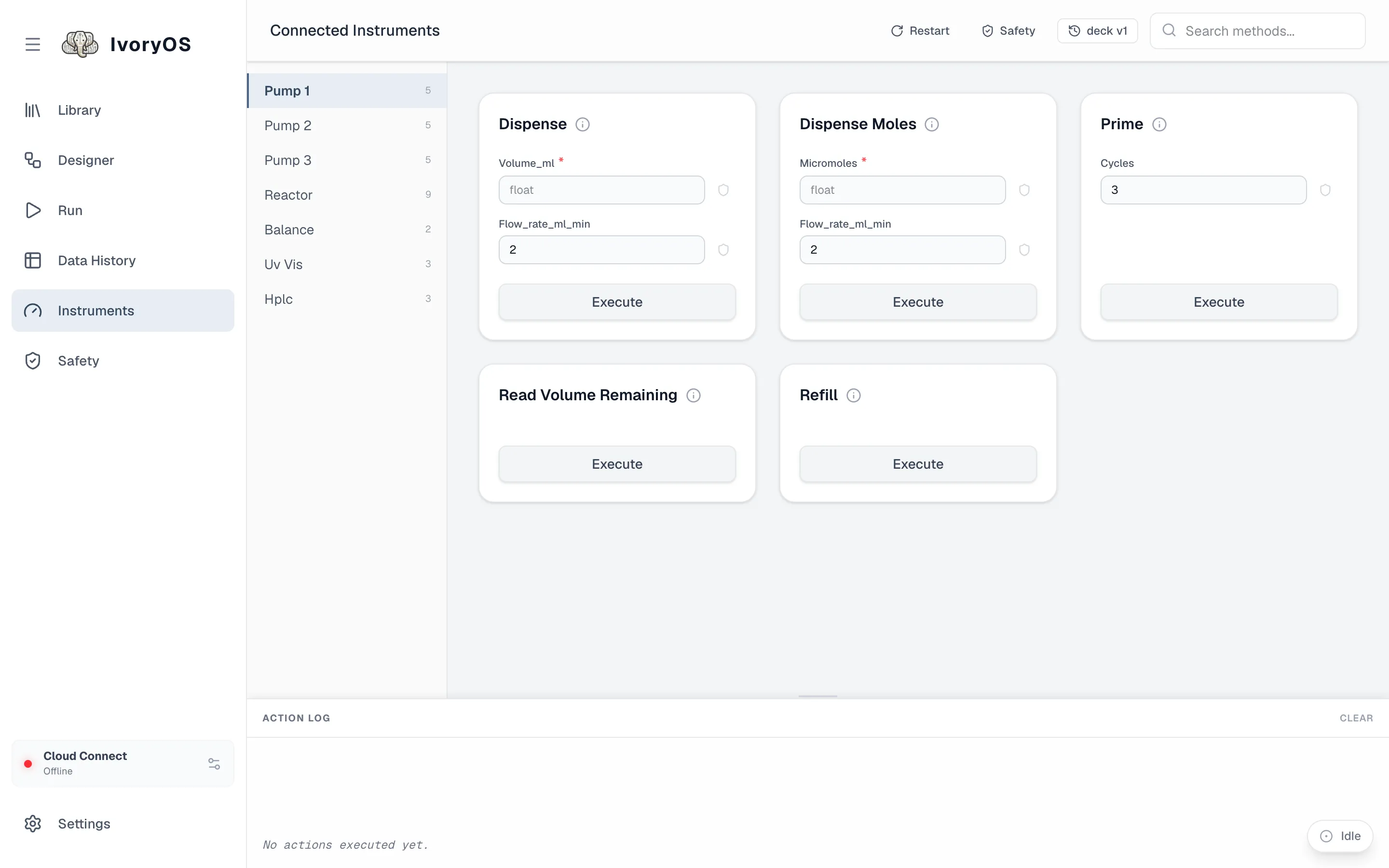
The Instruments page is the deck as the drivers describe it: one entry per instrument, one form per method. It is where you test a new driver, drive something by hand between runs, and see what did not load.
Run a method by hand
Section titled “Run a method by hand”- Pick an instrument on the left (the number is how many methods it has).
- Find the method; the search box filters by name.
- Fill in its fields (required ones are marked
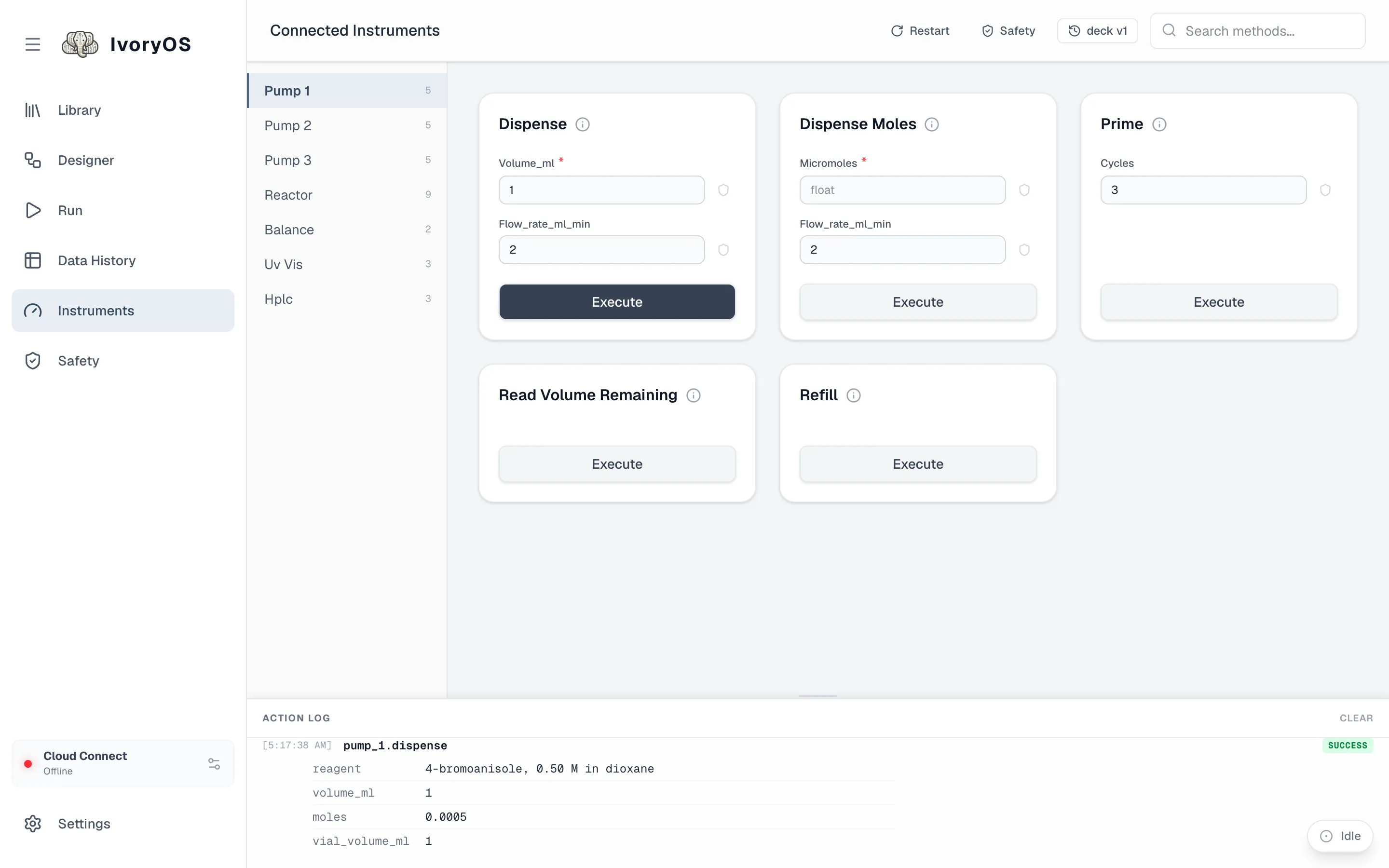
*; dropdowns, True/False and nested forms follow the driver’s type hints) and click Execute. - The Action log at the bottom shows each call and what it returned, or the error it raised.
Set a limit from here
Section titled “Set a limit from here”The shield at the end of each field opens the same limit editor the Safety page uses, for that one field: a minimum and maximum, a list of allowed values, a tray, or just a unit. Saved there, it is checked before every run and every call. See Safety.
Not loaded
Section titled “Not loaded”An instrument whose driver failed to import, whose constructor raised, or whose setup call failed is listed under Not loaded with the full error, and the rest of the deck runs without it. Fix the cause (plug it in, correct the port, install the package) and Restart.
Restart and deck versions
Section titled “Restart and deck versions”Restart starts the deck process again: it re-reads the deck file, re-imports the drivers (so an edited driver takes effect) and reconnects every instrument. It is refused while a run is going unless you confirm.
The deck vN badge is the deck’s current shape. Click it for the history: every time the instruments or their methods changed (a driver update, an instrument added), with what was added, removed or retyped. Every run and every saved workflow version is stamped with the deck version it belongs to.