Connect a deck
A deck pairs by showing a short code that a signed-in person approves on Cloud. The code is not a credential, only something to approve; the deck’s own secret never leaves it, and nothing typed on Cloud is sent to a device.
-
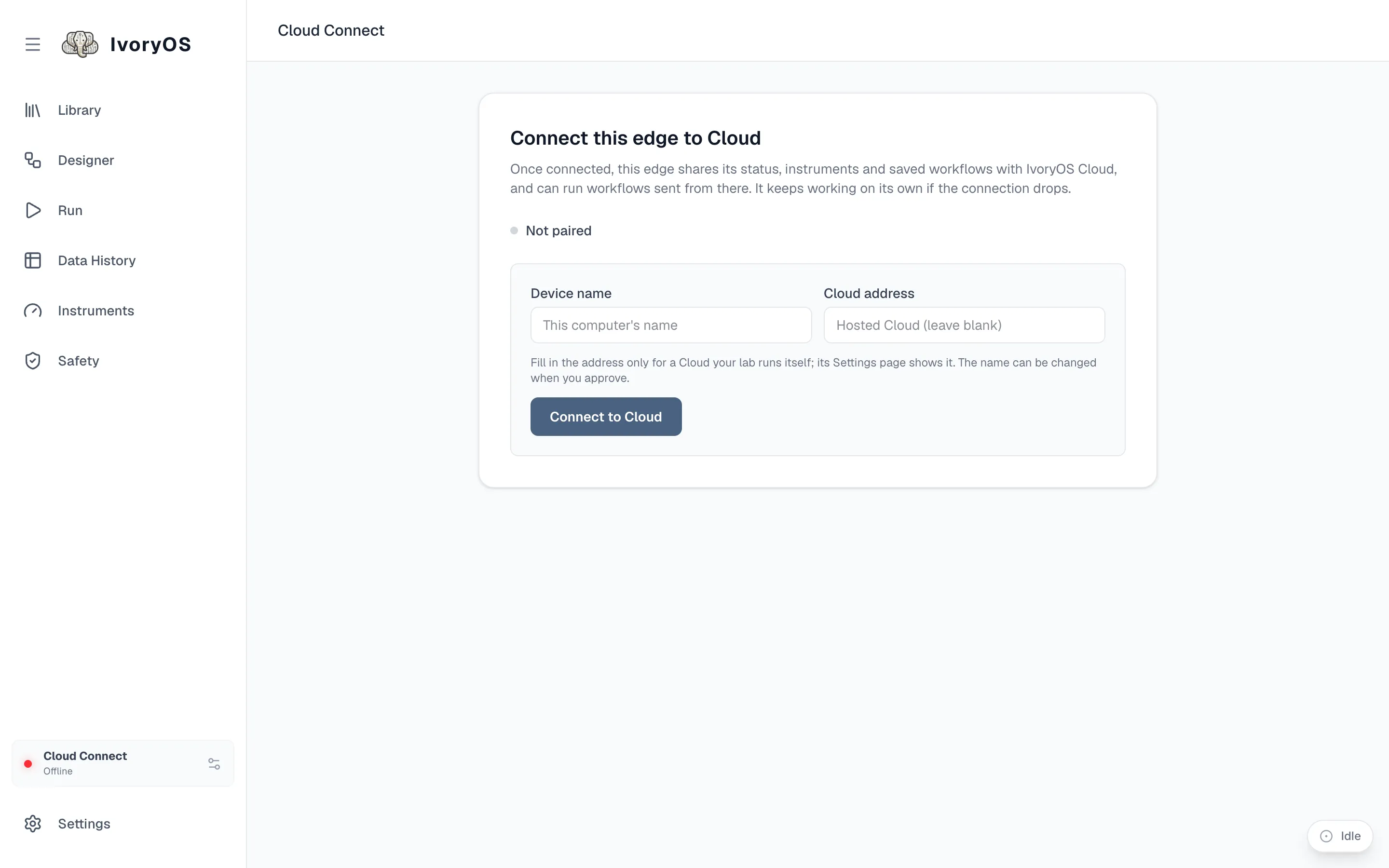
On the deck, open Cloud Connect (the card at the bottom of the sidebar) and press Connect to Cloud. Fill in a Cloud address only for a Cloud your lab runs itself. The page shows an 8-character code and a link, valid for ten minutes.
-
On Cloud, open Pair a device (or follow the link), enter the code, check the device’s name and instruments, pick its name and workspace, and Approve. If the device is not yours, Not mine denies it.
-
The deck collects its credentials on its own and connects. Its status, instruments and saved workflows appear on Cloud’s Devices page within seconds.
Signed in, the desktop app does both steps in one click (Connect on the deck’s Cloud card),
approving the code with the app’s own sign-in. From a terminal, ivoryos-edge pair does the same.
What is shared
Section titled “What is shared”The deck publishes its status (online, busy), its instrument schema, and its saved workflows. Which workflows go is the deck’s choice: always (on connect and on every save) or manual (only when you press Sync now). A workflow edited on Cloud can be sent back to the deck, where it is saved like any local save.
Pause, resume, remove
Section titled “Pause, resume, remove”- Pause keeps the pairing but disconnects; the deck shows as paused on Cloud, and stays off Cloud across restarts until you Resume.
- Remove says goodbye to Cloud, clears what the deck left there, and forgets the pairing. Its workflows stay on Cloud as a record of a removed device. Pair it again and it is a new device.
A deck has one lasting id, made the first time it pairs and kept after removal; its name is only a label, and two decks may share one. Cloud always shows the name.