
Designer
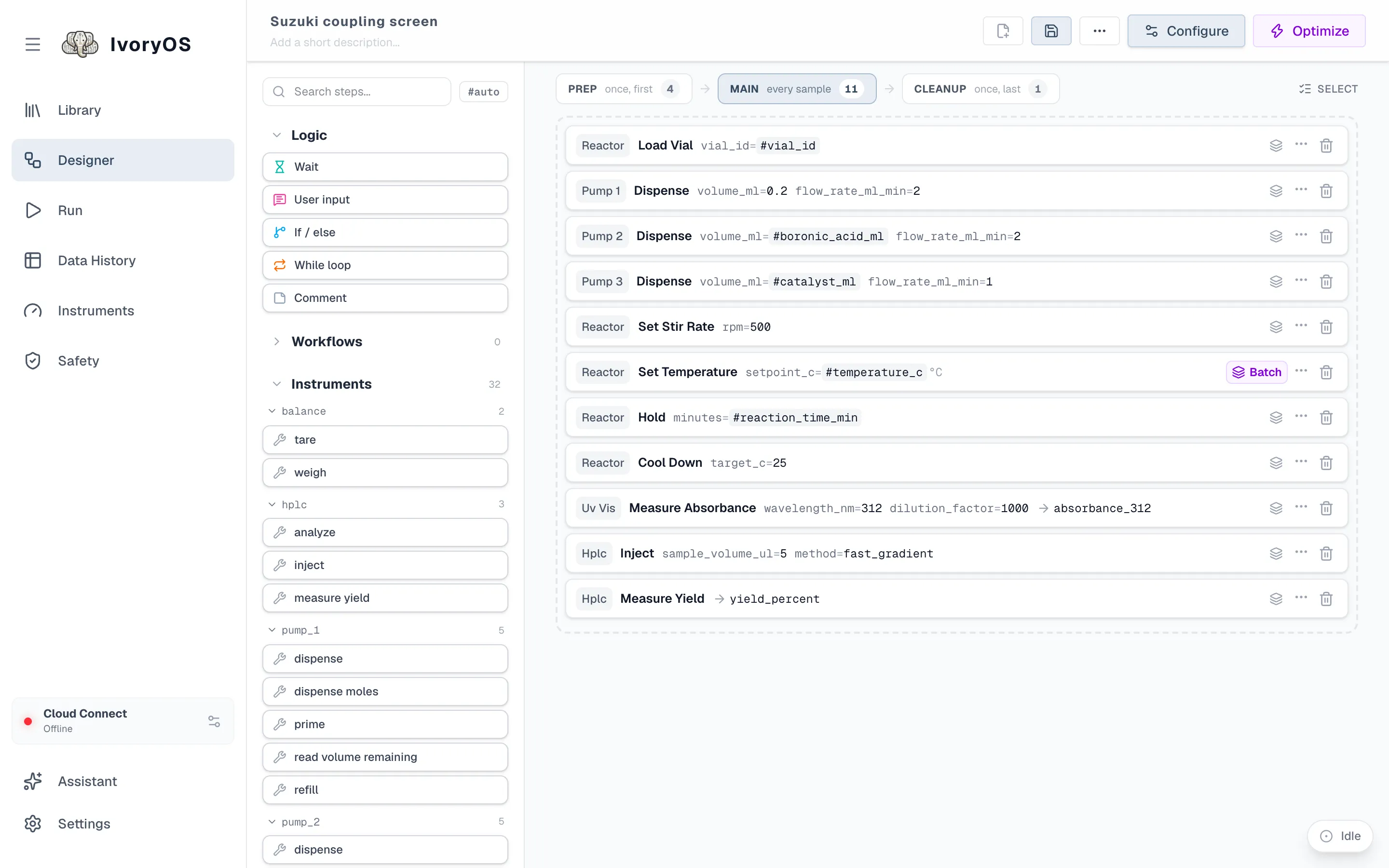
The Designer is where a workflow is built. The toolbox on the left lists everything the deck can do; the canvas is the workflow, in three phases chosen by the tabs above it: Prep runs once first, Main runs for every sample or trial, Cleanup runs once last.
The parts
Section titled “The parts”| Name and description | Top left. The name is how the workflow is saved and found; a workflow with no name asks for one when you save. |
| New, Save, ⋯ | New starts an empty workflow (it asks first if the canvas has steps). Save writes a new version to the Library. The ⋯ menu holds the rest: View as Python opens the script the workflow runs in a drawer beside the canvas (Download .py is in the drawer), and Export or Import move the workflow as a JSON file. |
| Run / Configure / Optimize | Run starts the workflow as it is. When it has open values (#variables) the button reads Configure and opens the Run page instead, and Optimize opens the Optimize tab. While another run is going the button reads Add to Queue. |
| Toolbox | Search box, the #auto switch, then three groups: Logic (built-in steps), Workflows (saved workflows, as a copy or a link) and Instruments (every method of every instrument, foldable per instrument). |
| Prep → Main → Cleanup | The tabs above the canvas, in run order, each with its step count. Prep runs once before Main, Cleanup once after, even when Main is iterated or optimized. The canvas shows the chosen phase. |
| Canvas | The chosen phase’s steps. Each step is one line that reads like its call. |
| Assistant | Bottom of the toolbox: describe a protocol in words and have it drafted against this deck. See Assistant. |
| Unsaved | A badge beside the name whenever the canvas differs from the saved version. Loading another workflow asks before discarding it. |
Build a workflow
Section titled “Build a workflow”-
Drag a step from the toolbox onto the canvas, or between two steps. Each instrument method is one step; the built-in steps under Logic are explained below.
-
Fill in its arguments. A dropped step opens ready to fill in. Folded, a step shows every argument on one line: a typed value in black, a default in grey, a
#variablein indigo, and a required value still missing as an amber?. Click any of them to open the step; click outside it or press Esc to close.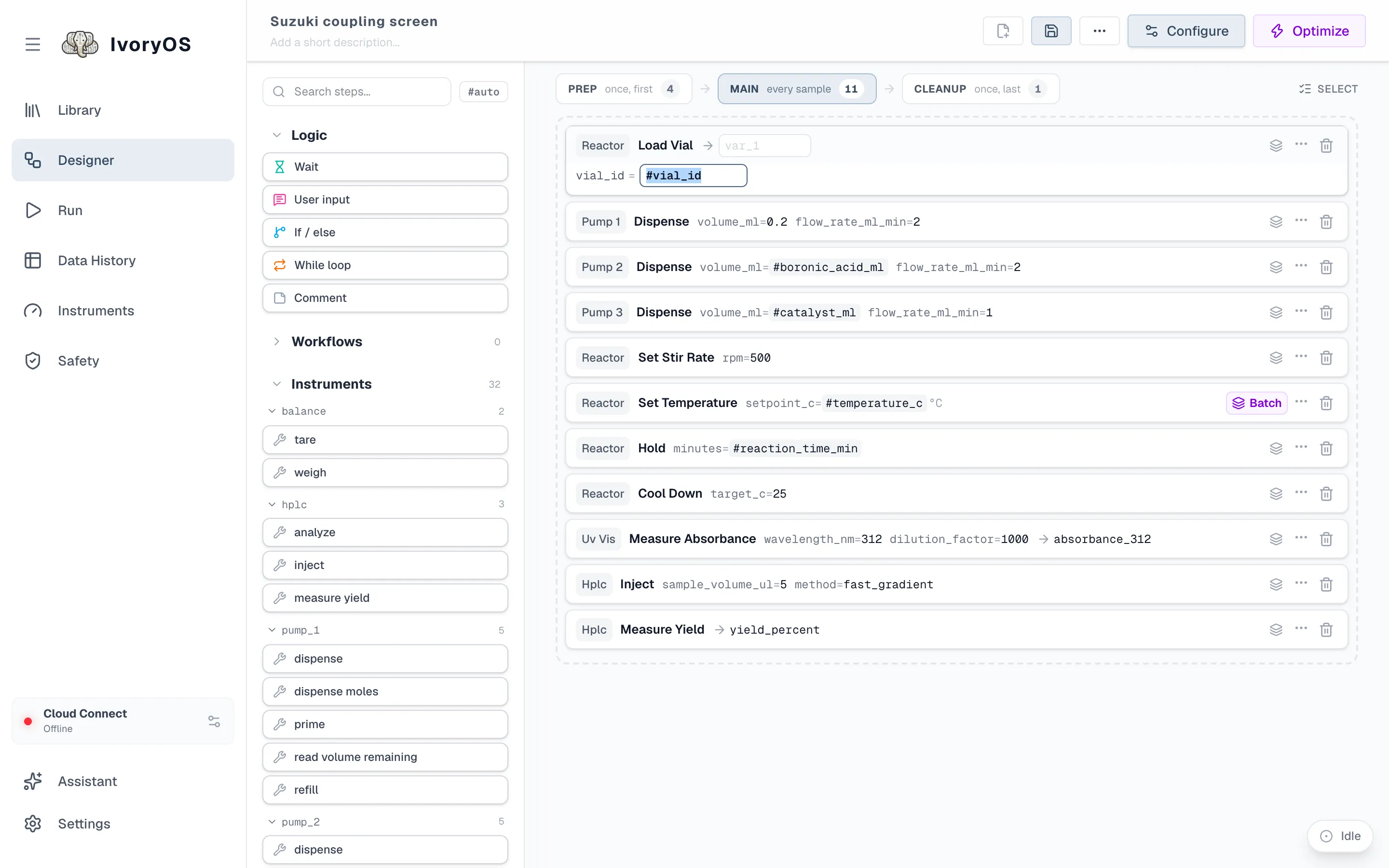
-
Leave a value open with
#. Type#temperature_cinstead of a number and that argument becomes an input the Run page asks for: a field on Once, a column on Iterate, a dimension on Optimize. Any name works; the same name in two steps means the same value. The#autoswitch makes every dropped step do this for all its fields. -
Save what a step returns. Each step has an output field after the arrow (
→ var_1). Type a name and the result is saved under it; a method that returns an object with several fields offers one output per field. A later step reads it back by typing#namein an argument. The editor suggests the names saved by the steps before the one you are editing. -
Reorder, duplicate, disable, delete. Drag a step by its handle. The
⋯menu duplicates it (an If or While construct duplicates whole) or disables it (it stays, greyed, and does not run). The trash deletes it. -
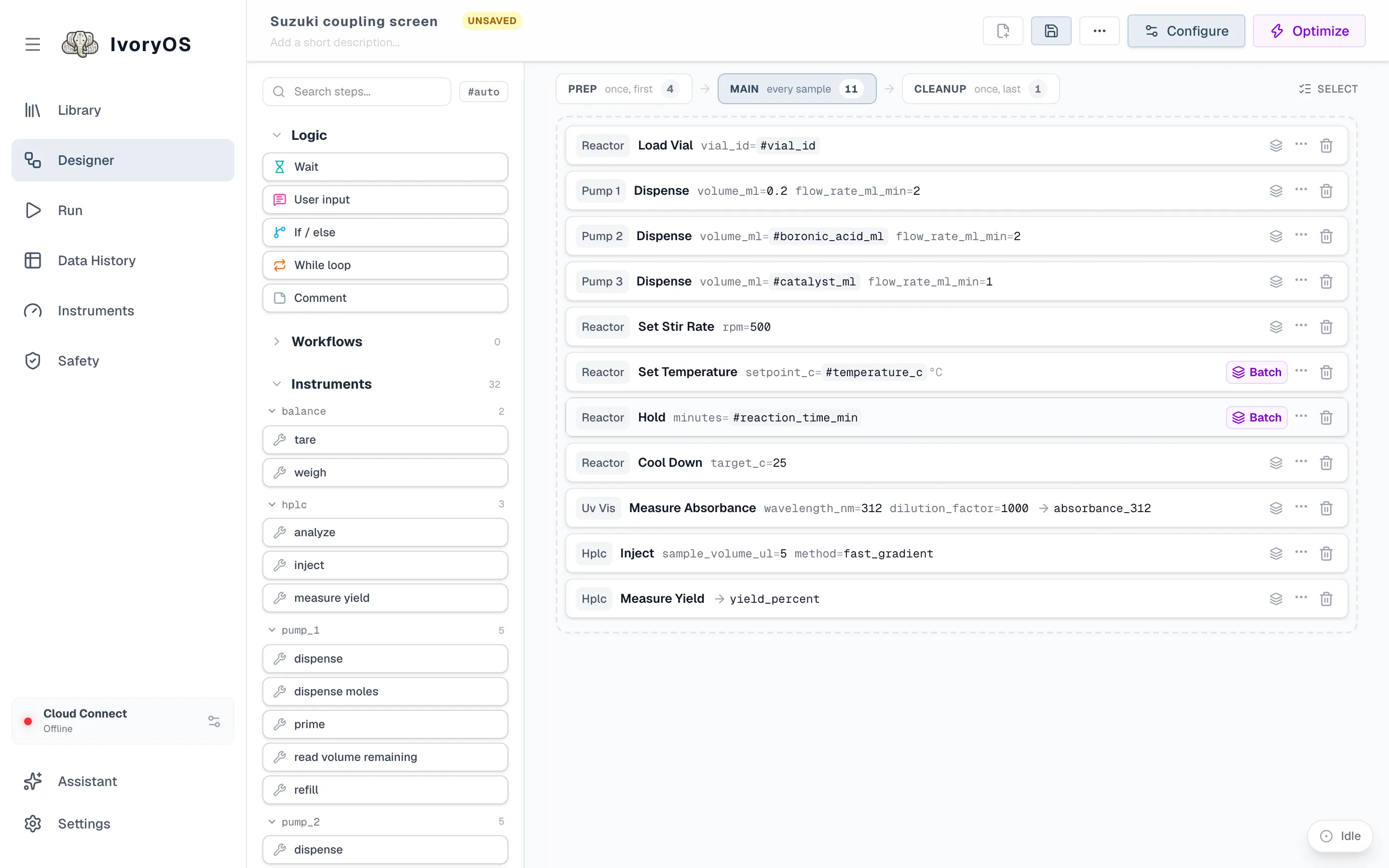
Mark a step as once per batch. The layers icon on each Main step switches it between per sample (default) and per batch, which matters when the workflow is iterated over a spreadsheet: see Iterate. Purple always means “once per batch”.
-
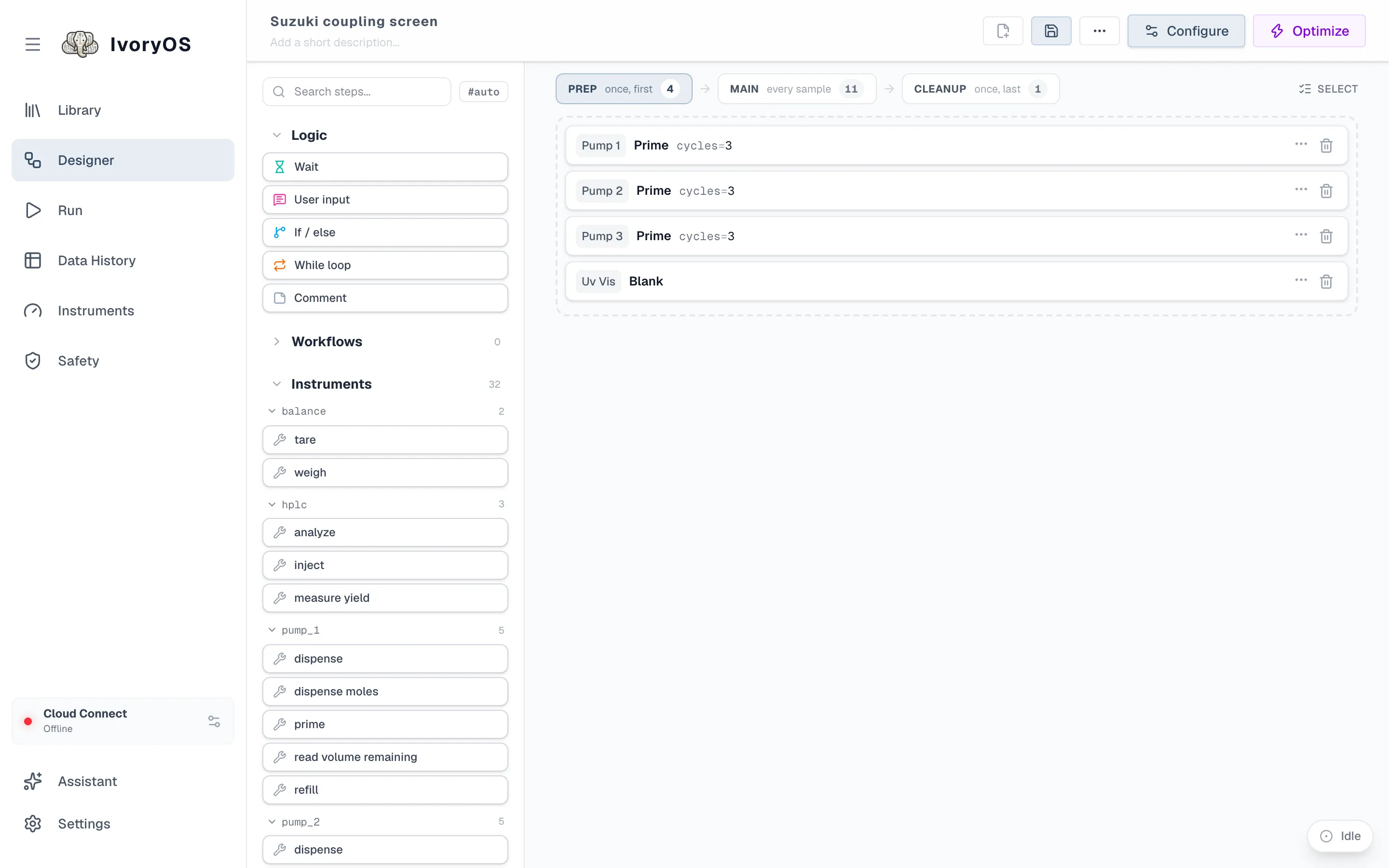
Add Prep and Cleanup. Click the Prep or Cleanup tab and drop steps into its list. Priming pumps and blanking a spectrometer belong in Prep; parking the stirrer in Cleanup. To move a step to another phase, drag it over that phase’s tab and hold: the canvas switches to that phase and you drop the step where it belongs. Let go on the tab itself and the step goes to the end of that phase.
-
Save. The first save asks for a name; every later save adds a version to the Library and keeps the old ones. If other workflows link to this one, the Designer says so before saving and offers to save under a different name instead.
Logic steps
Section titled “Logic steps”| Step | What it does | Fields |
|---|---|---|
| Wait | Pauses for a number of seconds. Stop ends it at once. | duration_seconds |
| User input | Pauses the run and shows a message on every page. With a variable name it also asks for a value (text, integer, decimal or yes/no) and saves it under that name; without one it is a plain pause with a Continue button. | prompt, variable_name (optional), input_type |
| Set variable | Saves a value under a name, read as name = value: a number, True/False, "text", or a calculation over the names saved so far (volume * 2, i + 1, round(mass / 3, 2)). Later steps use it as #name. The type converts the result; auto keeps it as it is, and with str the value is text, where #name is filled in. | variable_name, value, type |
| If / else | Runs the steps between If and Else when the condition holds, the ones between Else and End_If otherwise. Dropping it adds all three; drag steps between them. | condition |
| While loop | Repeats the steps between While and End_While as long as the condition holds. | condition |
| Comment | Writes a note into the run log, like print(). | message |
A condition, and a Set variable’s calculation, is a Python expression over the names saved so
far, written without the #: absorbance_312 > 1.5, yield_percent < 40 and attempt < 3. A Set
variable whose value is a lone #name instead takes that value from the spreadsheet or the
optimizer, like any step’s argument. A message or prompt may contain
#name anywhere in its text ("flow rate is #flow_rate"), and the value is filled in when the
step runs.
Reuse a saved workflow
Section titled “Reuse a saved workflow”The Workflows group lists every saved workflow except the one being edited, with a Copy / Link switch above it.
- Copy (the default) drops the workflow’s steps onto the canvas as a group. They are yours to edit, and nothing ties them to the saved workflow any more.
- Link drops one step, Library Workflows · name, pinned to the saved workflow’s current version. Click it to read its steps in a side drawer with your values filled in. When the saved workflow is edited, the link keeps running the version it was pinned to until you update it; Detach turns it into a copy.
A linked workflow used as a step runs its Main steps only. Its own Prep and Cleanup run when it is the whole run: on its own, or as a stage of a design (see Stages).
Groups are for tidiness: tick the boxes on several consecutive steps (the Select control above the canvas) and group them, and they collapse, move and delete together. A group is not a link; it tracks nothing.
When a step is wrong
Section titled “When a step is wrong”Warnings appear above the step, never behind a click: a method the deck no longer has, a missing required value, text in a number field, a value outside a safety limit. The Library’s working first sort uses the same checks, so a workflow saved for an older driver points you at exactly the steps to fix.